MateSel generates optimal mating recommendations tailored to your own herd and breeding objectives for a list of candidate animals based on information and trait parameters set by you.
https://youtu.be/cBtCxOXUp7k
MateSel puts you in the driver’s seat. Through an interactive graphical interface, you guide the program towards the solutions that suit your herd. If the initial plan doesn’t align with your vision, you can adjust the parameters — “move the goalposts”—and MateSel will generate a new plan that reflects this updated direction. Ultimately, you make the decisions—not the program—but MateSel does the hard work behind the scenes.
The process involves:
Login to Angus.Tech
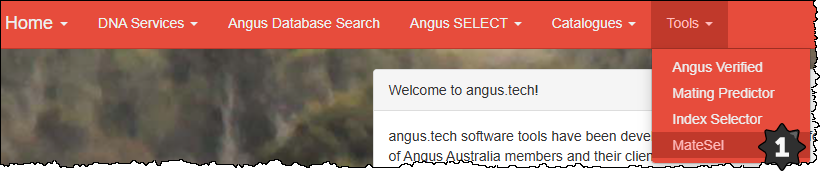
1. Access MateSel under the Tools dropdown menu
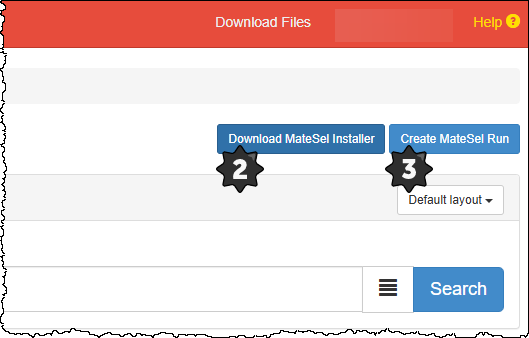
2. First time users will need to select: “Download MateSel Installer”. This will download MateSel which you need to install on your computer. Follow the prompts and close the window at the end of the installation process.
Creating a MateSel Run
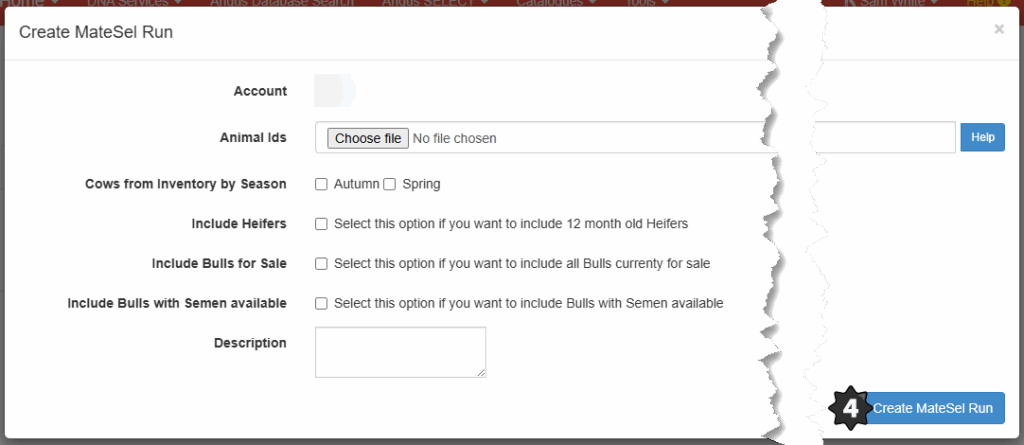
3. Select the “Create a MateSel Run” button. This will create a pop-up window which will allow to select your candidate animals.
4. Selecting Candidate Animals
a. Import Animals – a file containing IDs of cows and bulls you wish to include in the MateSel extract. For further information on how to structure this file see the “Help” button or view additional details here. Please note: Any cows in the list must be in your ownership to be extracted.
b. Tick Boxes – Select active within either your autumn or spring inventory, whether you wish for heifers to be included or not, and whether you wish to include semen sires and/or sale bulls.
c. Description – This is the naming field, allowing for traceability if you wish to review results again in the future.
d. Creating a MateSel Run – Once all candidate animal details are supplied, select “Create MateSel run” to complete the data transfer process. A pop-up window will provide you with the progress of the data transfer process between Angus.Tech and MateSel.
Launching MateSel
5. Select “Search” to open all your MateSel Runs.
6. To display the launch MateSel button, click the arrow on the left-hand side of the corresponding run you which to open.
7. Select “Launch MateSel”. A new MateSel run window will open on your computer.

Defining a breeding objective (Basic Settings)
8. Select the most suitable selection index for your breeding herd that will be used for the optimisation of matings, e.g. $A, Angus Breeding Index.
9. Select up to 12 traits to monitor and show progeny distributions for. Click on the list of traits at the top to close the dropdown list and show the “Next” button.
Select the “Next” button.

Defining Mating Rules
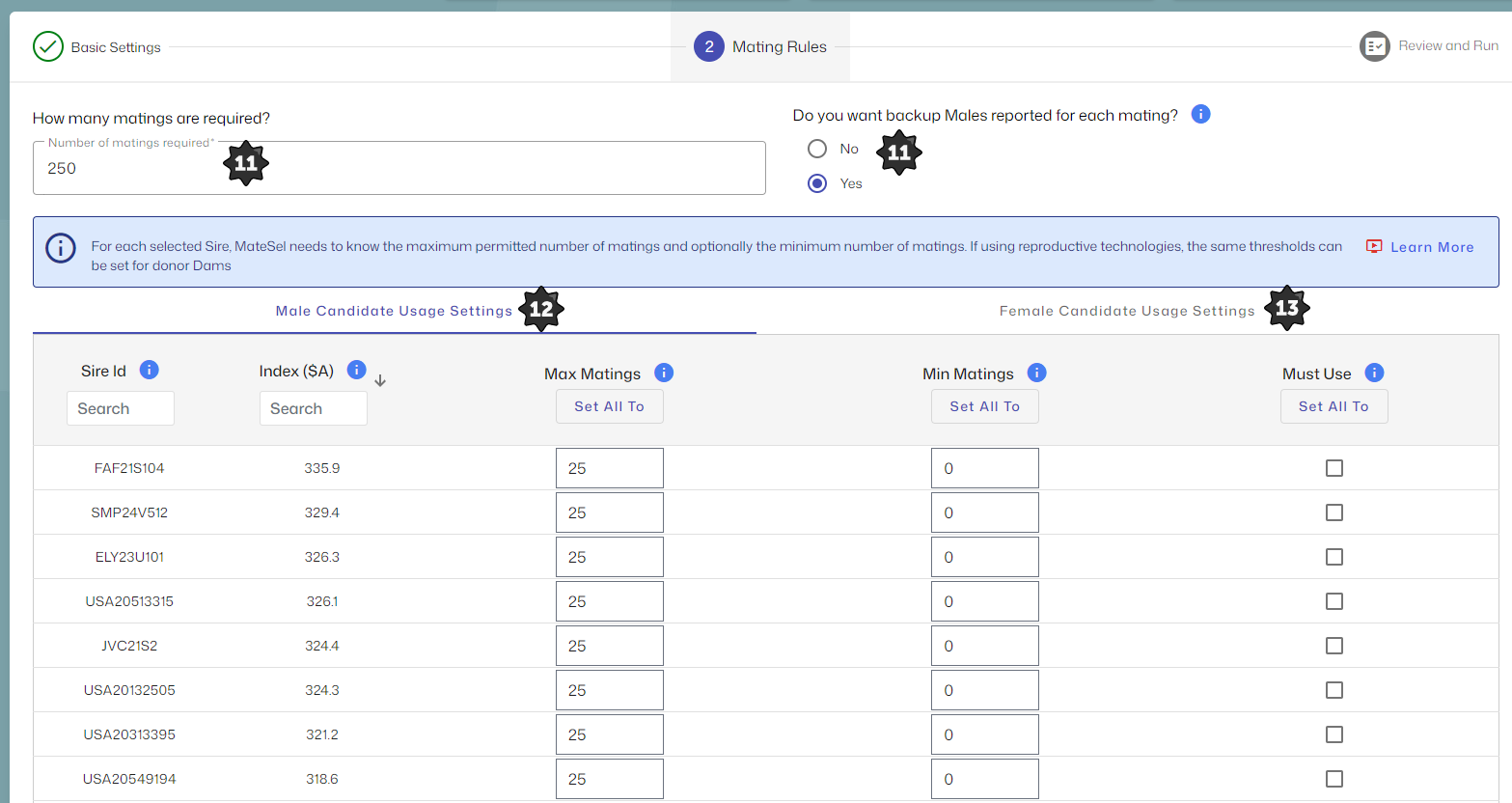
10. Number of Matings Required: Enter the number of matings
required, this will automatically populate with the number of dams
in the file. However, it can be reduced (considering females to cull) or increased (considering potential donor dams).
11. Backup (replacement) bulls: MateSel provides 4 alternative options, in addition to the optimised mating. If you would like additional backup (replacement) bulls, select “Yes”.
12. Male Candidate Usage Settings: It is possible to add maximum, minimum and must-use criteria for individual bulls. Additionally, these criteria can also be applied to all via the “Set all to” buttons.
Tip: This is useful where you have certain bulls you would like to ensure their use within this mating season e.g. semen straws to be used or certain natural bulls.
13. Female Candidate Usage Settings: Select whether you will be using reproductive technology. If using either IVF or MOET, it is possible to add maximum, minimum and must-use criteria for individual females as well. Again, these criteria can also be applied to all via the “Set all to” buttons.
14. Select the “Next” button at bottom of page.

Review and Run
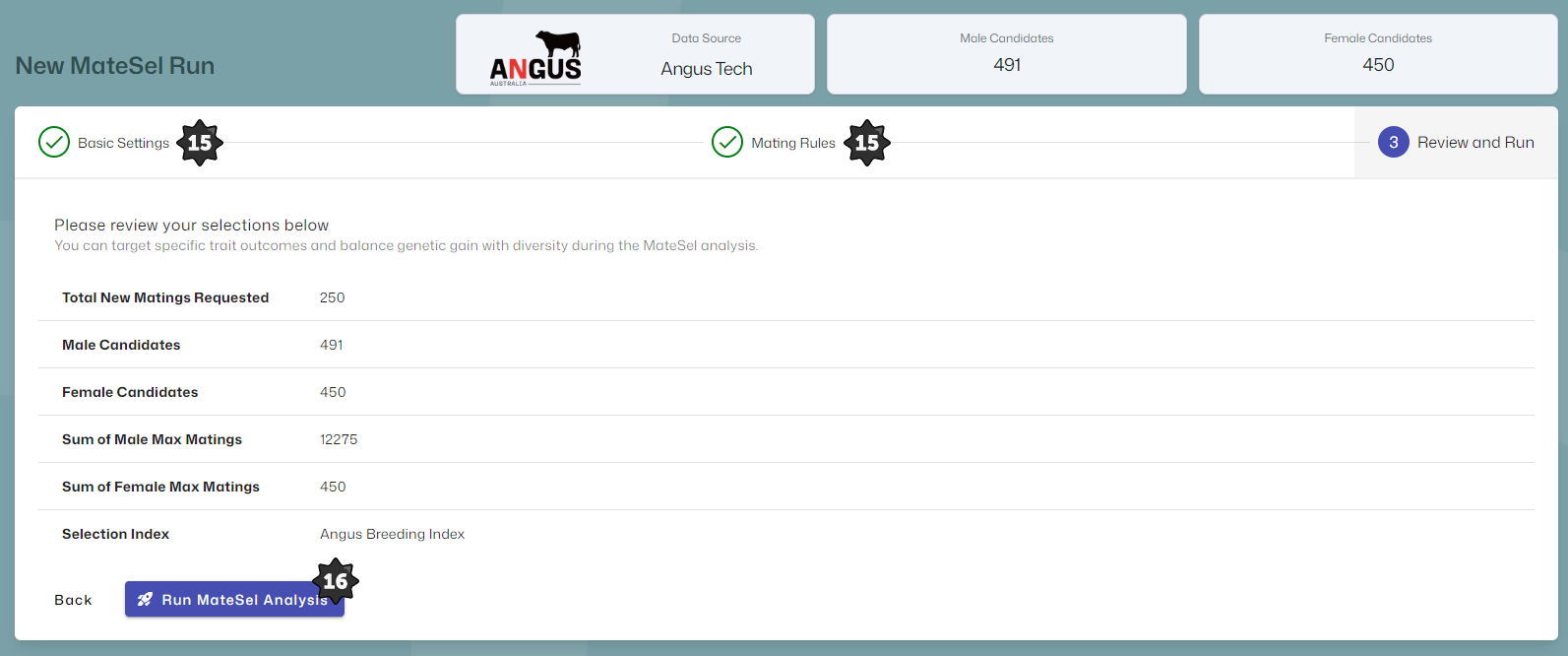
15. Review your criteria applied and confirm selections.
- If you would like to make changes, select “Basic Settings” or “Mating Rules”.
16. To start MateSel run, select “Run MateSel Analysis”